Gallery Layouts
There are two main layouts available:
- Justified Layout
- Masonry Layout
Both feature a variety of configuration options to further adjust the look and feel. Head over to the Playground to try them out!
Justified Layout
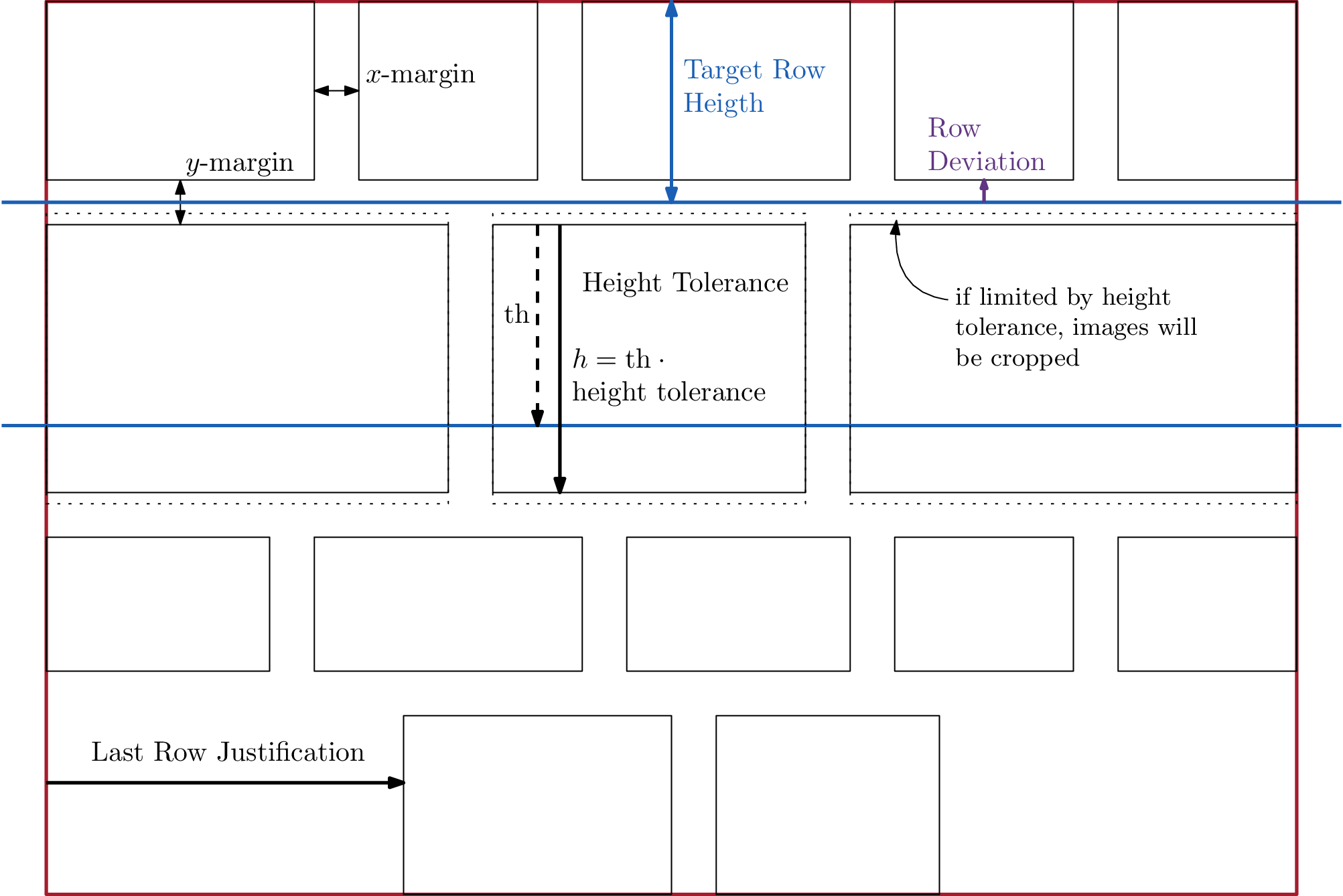
The images are arranged in rows, which fill the complete width of the gallery. The most important configuration option is targetRowHeight, which affects the height of these rows. The layout engine will attempt to create rows with exactly that height and then slightly adjusts it to fill the whole width of the gallery without changing the aspect ratio of any images. Whether the height will be increased or decreased can be adjusted through the rowDeviation parameter.
The tolerance of how much the height can be adjusted is set through the heightTolerance parameter. This sets the allowed deviation of the target height as a fraction. E.g. a setting of 0.5 allows the row to grow to 150% the height or 50% the height of the target row height. After that, the row height will be clamped to that value. The width of each image will continue to be adjusted however, resulting in the images being cropped to fit into their assigned boxes.
As the last row most likely won't be filled completely, the behavior of the last row can be further customized through the lastRowJustification parameter. It can either be aligned to the left/right/center, cropped to fill the whole width or hidden, if it doesn't fit into the assigned height tolerance.
The different parameters are illustrated in the following figure. Additionally, the different parameters can be explored interactively in the Playground.
Masonry Layout
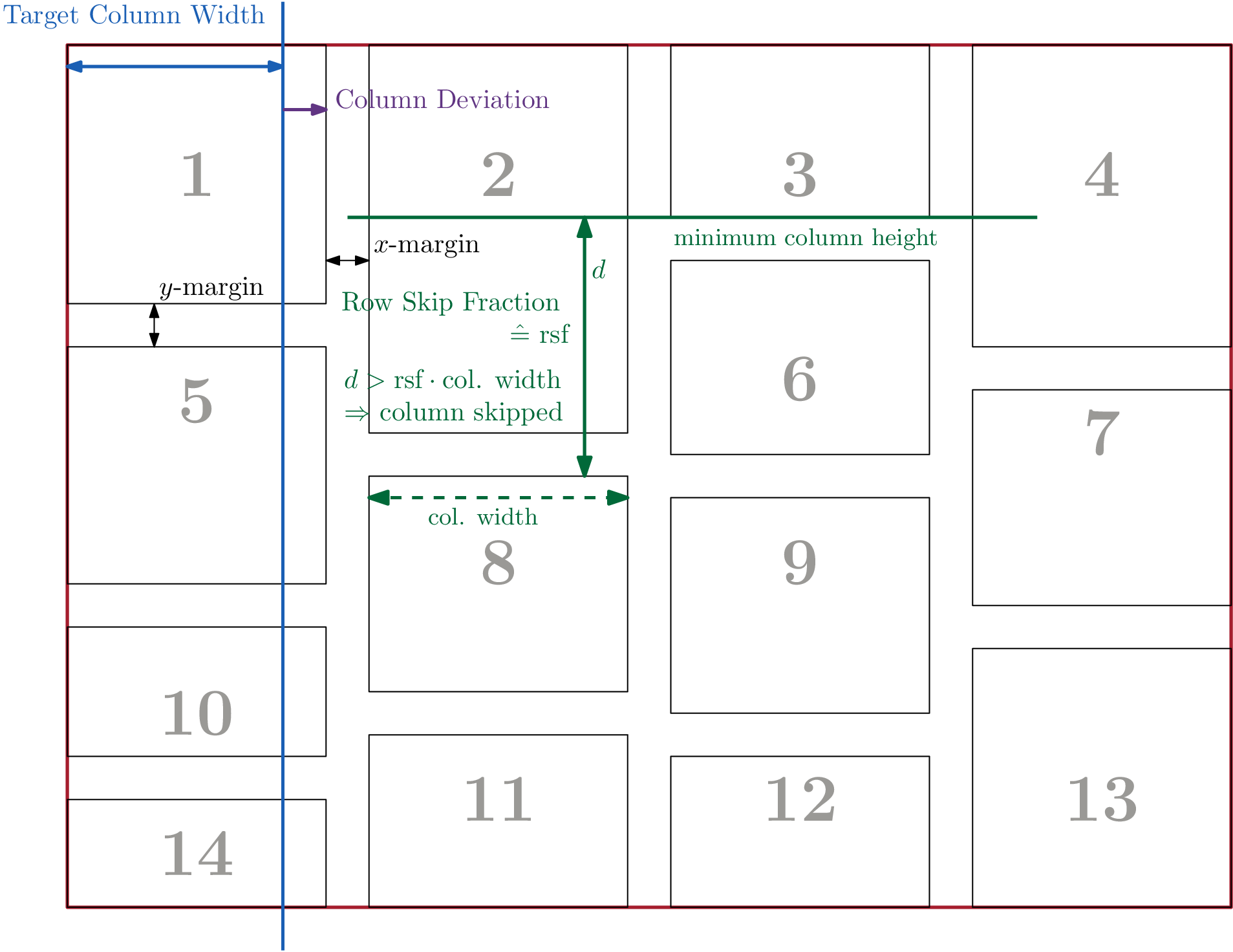
The images are arranged in columns of the same width. The number of columns can be either specified through a target width (targetColWidth) or a target number (targetColNumber). A target number will override the value in the target width. When using the target width, the colDeviation parameter can be used to decide whether the columns should be wider or narrower than the target width to fill the whole width of the gallery.
Even though the images are arranged in columns, they are still placed in rows, to attempt to provide a sensible order of the images when reading from top to bottom and left to right (LTR). To prevent the vertical position of images from the same row from drifting too far apart, a rowSkipFraction parameter is used. It prevents an image from being placed in a column, when its height is further away from the shortest column of that row than the specified fraction of the column width (see following figure for an illustration).
To achieve a more tradition "masonry" layout that places each next picture in the column of minimum height, set the rowSkipFraction to 0. However, this will most likely lead to the images appearing out of order.
Lastly, the columns can be justified to the same height through the justifyColumns parameter. This will not modify the visible width of any column. However, it will change the width used for calculating the aspect ratio of the image. Thus, the images will be slightly cropped to fit into their designated boxes. As a result, each column will be adjusted such that it matches the average height of the unjustified columns.
The different parameters are illustrated in the following figure. Additionally, the different parameters can be explored interactively in the Playground.
Which Layout to choose
When trying to decide between the two different layouts and how they should be configured, the Playground is the recommended way of interactively exploring all the different configuration options.
However, when the order of the images is important, the Masonry Layout is discouraged, as the order is not readily apparent when using that layout.